- Parents & Students
-
-
Parent Resources
- Career Programs and Dual Credit
- Child Care Programs
- Curriculum
- District Calendars
- District Contacts Directory
- Early Learning Programs
- Homeschooling Requirement
- Inclusive Learning Support
- Kindergarten Registration
- MyEdBC Login
- Parent Advisory Council
- Transportation Registration
- Student Insurance
- Student Registration
- Transportation
- Winter Weather Information
- Welcome to the 2026-2027 School Year!
- CV Mental Health and Digital Safety Resources
Student Resources
- Provincial Assessments
- Career Programs and Dual Credit
- Digital Resources
- District Moodle
- e-FSA Login
- Erase
- Graduation Assessments
- MyEdBC Login
- Online Course Selection
- Reset Office 365 Passwords
- Resources
- Scholarships
- Student Literacy and Numeracy Dashboard
- Student Learning Survey
- Safe, Caring, Inclusive Schools (Anti Racism and SOGI)
District Parent Advisory Council
- Chair: Keirsten Tymko
- Email: cowichanvalleydpac@sd79.bc.ca
- Website: dpac.sd79.bc.ca
-
-
- Employment
-
-
Employment Opportunities
Join the Cowichan Valley School District and have the career you want that supports the life you have.

-
-
- Contact Us
-
-
Welcome to Cowichan Valley School District
The Cowichan Valley School District proudly serves learners across many diverse communities. We offer world-class instruction and a rich diversity of engaging programs to help prepare our learners for a world they will create.
Contact District
Phone: (250) 748-0321
Fax: (250) 748-6591
Email: info@sd79.bc.caMailing Address
- 2557 Beverly Street
Duncan, British Columbia
V9L 2X3
- 2557 Beverly Street
-
-
- Schools
-
-
Welcome to Cowichan Valley School District
There are 17 Elementary schools and 5 Secondary schools in the Cowichan Valley School District.
Catchment School
To learn what your catchment school is and to obtain school contact info please use the School Locator tool.

Framework for Enhancing Student Learning (FESL)
Each school has their own plan on how to serve our learners. These plans align with the district-wide FESL and Beyond Education, you can find individual school FESL’s with the below
-
-
- News
-
- Calendars
-
-
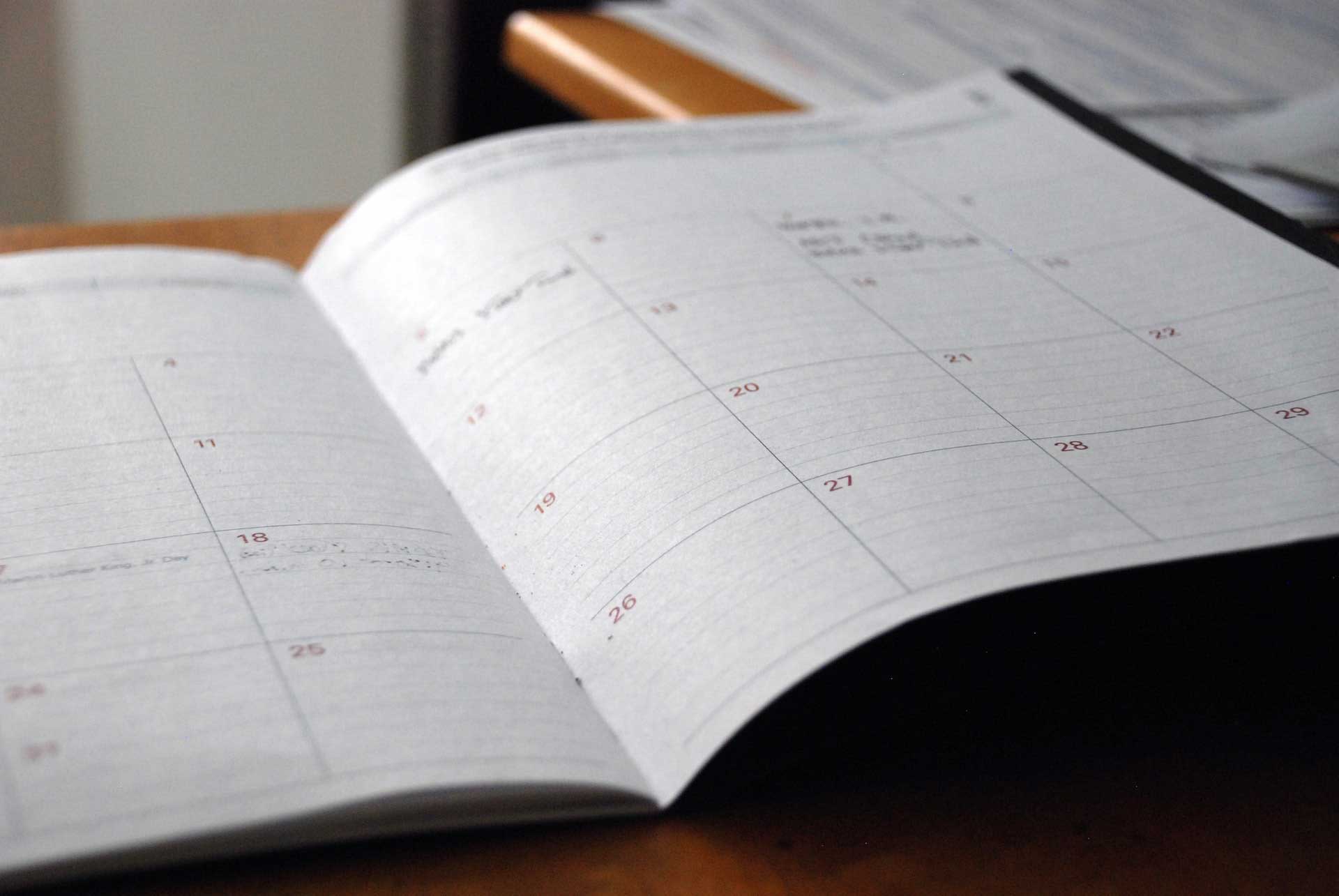
View 2024-2027 School Calendars
- 2024/25 School Calendar – finalized (the non-instructional and professional development days have been confirmed) and includes Early Dismissal days. Early Dismissal days added for PLCs.
- 2025/26 School Calendar – finalized (the non-instructional and professional development days have been confirmed) and includes Early Dismissal days. Early Dismissal days added for PLCs.
- 2026/27 School Calendar – finalized (the non-instructional and professional development days have been confirmed) and includes Early Dismissal days. Early Dismissal days added for PLCs.
- School Calendar Holiday Breaks (2024/25 to 2026/27)
Frequently Asked Questions
Do you have questions about how the school calendars are created? Please read our Frequently Asked Questions.
-
-

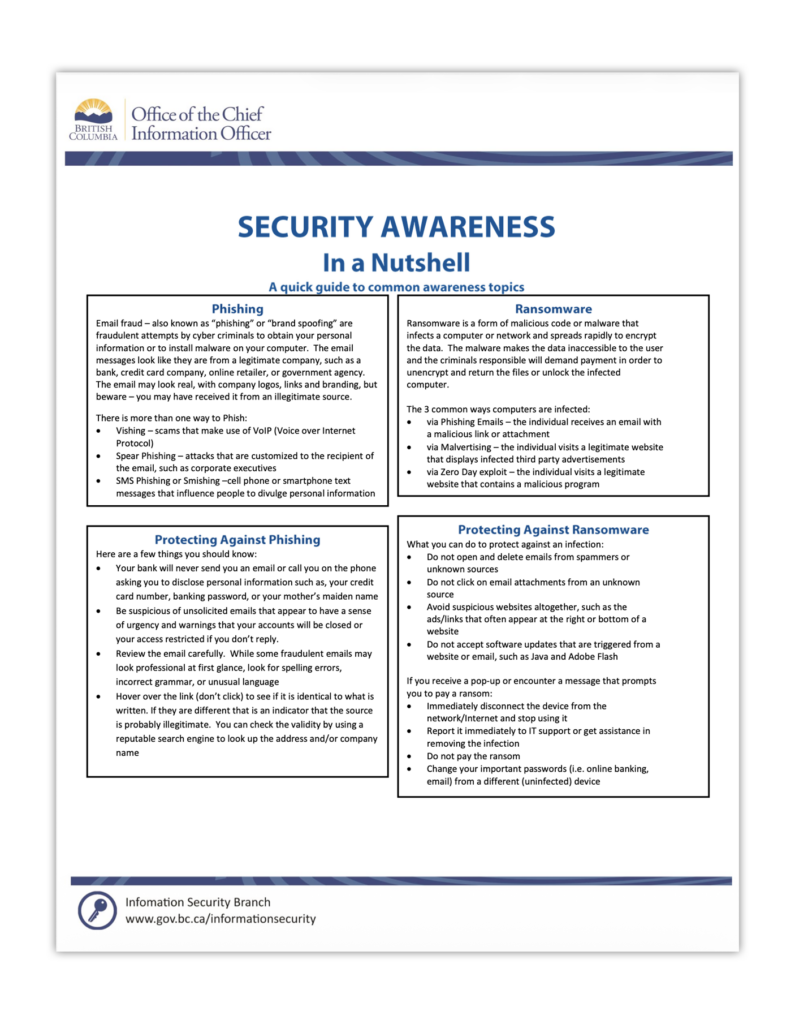
Everyone plays a role in good digital hygiene
The Cowichan Valley School District, like many school districts across British Columbia, has adopted the Defensible Security framework because it provides a practical, province-backed framework tailored for public-sector organizations managing limited resources. This framework aligns with other modern Cybersecurity frameworks, which follows a defence in depth approach to prevent or limit the extent of a cyber-incident.
We have collected and curated some learning below. Remember, practicing digital hygiene is everybody’s responsibility.
Top 7 digital hygiene rules
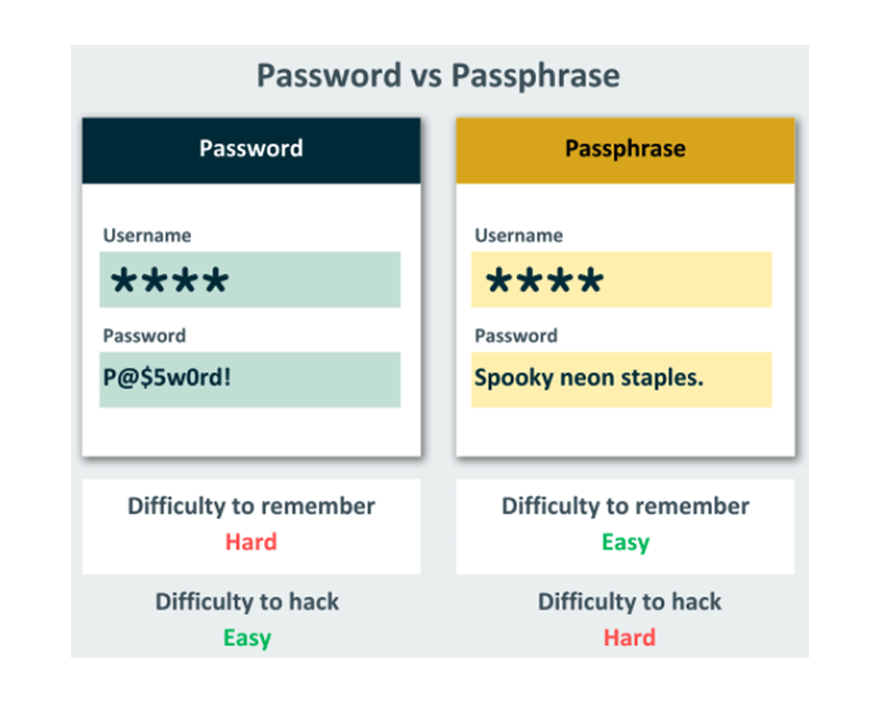
1.) Use a passphrase!
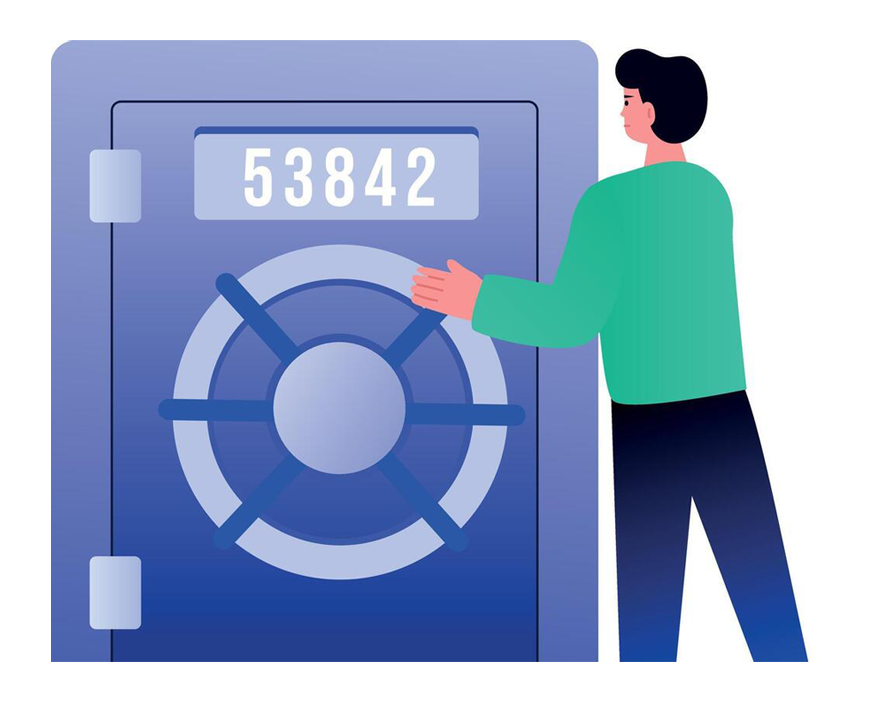
2.) Use a ‘passphrase’ manager
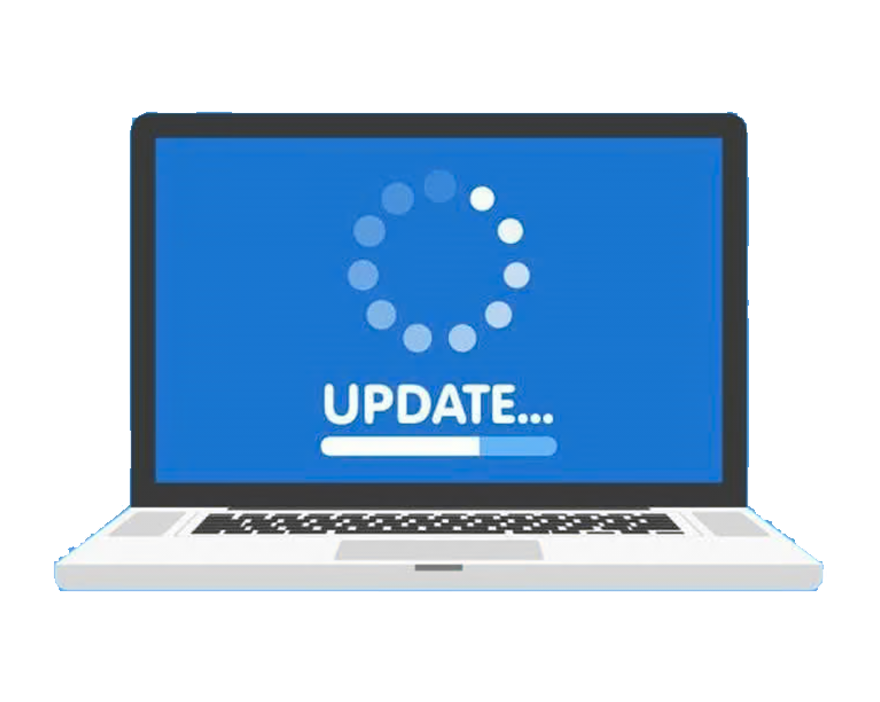
3.) Updates are good.
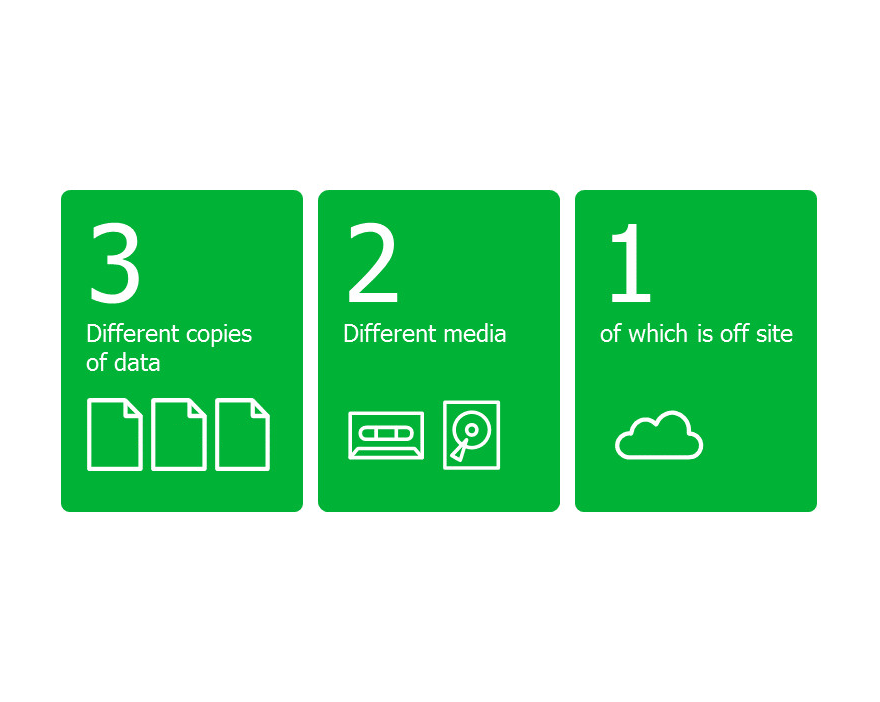
4.) Always backup your data
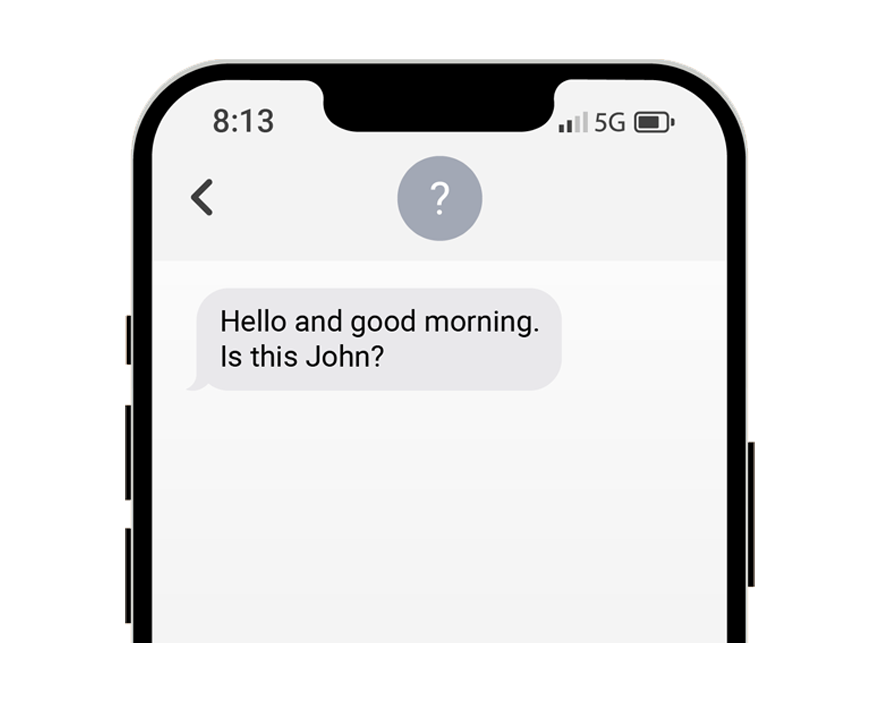
5.) Social engineering awareness
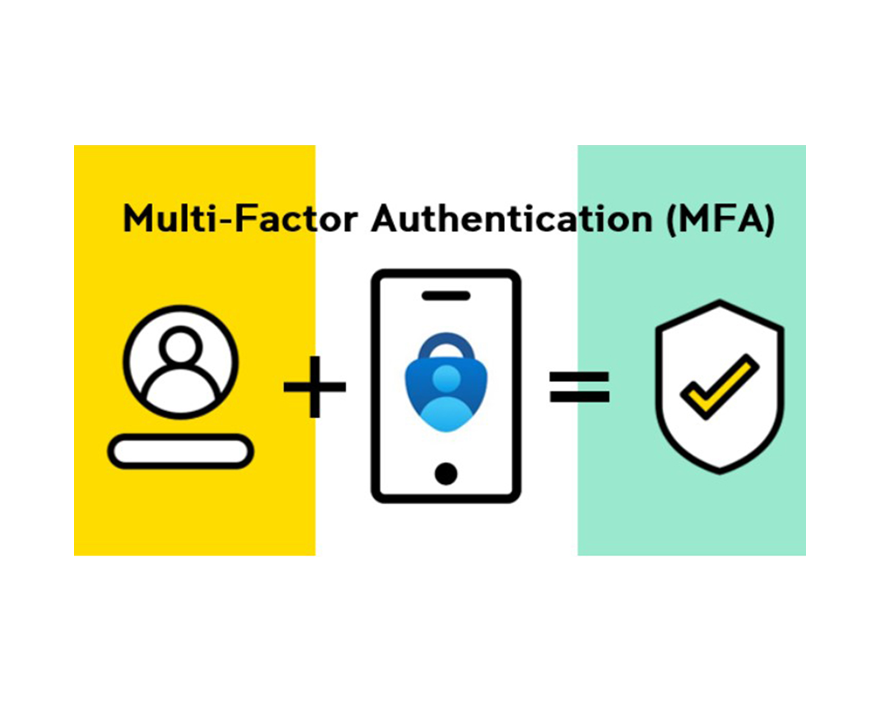
6.) Multi-factor Authentication
7. Workstation etiquette
Challenge your knowledge
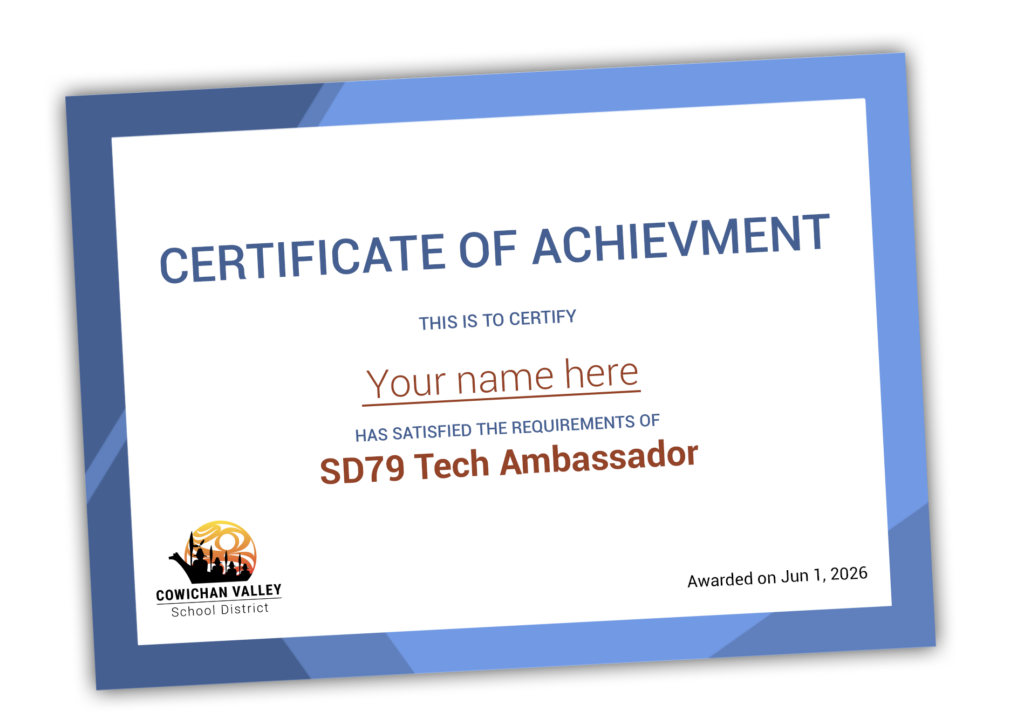
Ready to become a Tech Ambassador?
Put your knowledge and skills to the test and take our quick assessment. If you pass, you’ll even get a certificate and badge you can use in your email signature.
Security Cheat Sheet