Parent Resources
Student Resources

District Parent Advisory Council
Employee REsources
Welcome to Cowichan Valley School District
The Cowichan Valley School District proudly serves learners across many diverse communities. We offer world-class instruction and a rich diversity of engaging programs to help prepare our learners for a world they will create.
Contact District
Phone: (250) 748-0321
Fax: (250) 748-6591
Email: info@sd79.bc.ca
Mailing Address
Welcome to Cowichan Valley School District
There are 17 Elementary schools and 5 Secondary schools in the Cowichan Valley School District.
Catchment School
To learn what your catchment school is and to obtain school contact info please use the School Locator tool.

Framework for Enhancing Student Learning (FESL)
Each school has their own plan on how to serve our learners. These plans align with the district-wide FESL and Beyond Education, you can find individual school FESL’s with the below
Nourish Cowichan
Nourish Cowichan provides lunch for all students who need it without barriers such as registration or application.
Please connect with your school office staff for access or more information.
Transportation Registration
Registration for the upcoming school year will open May 1 – May 31 for annual registration.
School Fees
District Academies
The Cowichan Valley School District, in partnership with a number of organization, offers District Academies to students both within, and beyond, the Cowichan Valley. The various District Academies offer students exceptional choice and the ability to focus their learning in specific areas of interest led by specialists in that field.
View 2024-2027 School Calendars
Frequently Asked Questions
Do you have questions about how the school calendars are created? Please read our Frequently Asked Questions.
Parent Resources
Student Resources

District Parent Advisory Council
Employee REsources
Welcome to Cowichan Valley School District
The Cowichan Valley School District proudly serves learners across many diverse communities. We offer world-class instruction and a rich diversity of engaging programs to help prepare our learners for a world they will create.
Contact District
Phone: (250) 748-0321
Fax: (250) 748-6591
Email: info@sd79.bc.ca
Mailing Address
Google Translate is offered as a complimentary tool to improve the accessibility of the Cowichan Valley School District. Therefore, we cannot be held accountable for Google Translate™.
[gtranslate]
The Cowichan Valley School District, like many school districts across British Columbia, has adopted the Defensible Security framework because it provides a practical, province-backed framework tailored for public-sector organizations managing limited resources. This framework aligns with other modern Cybersecurity frameworks, which follows a defence in depth approach to prevent or limit the extent of a cyber-incident.
We have collected and curated some learning below. Remember, practicing digital hygiene is everybody’s responsibility.

1.) Use a passphrase!
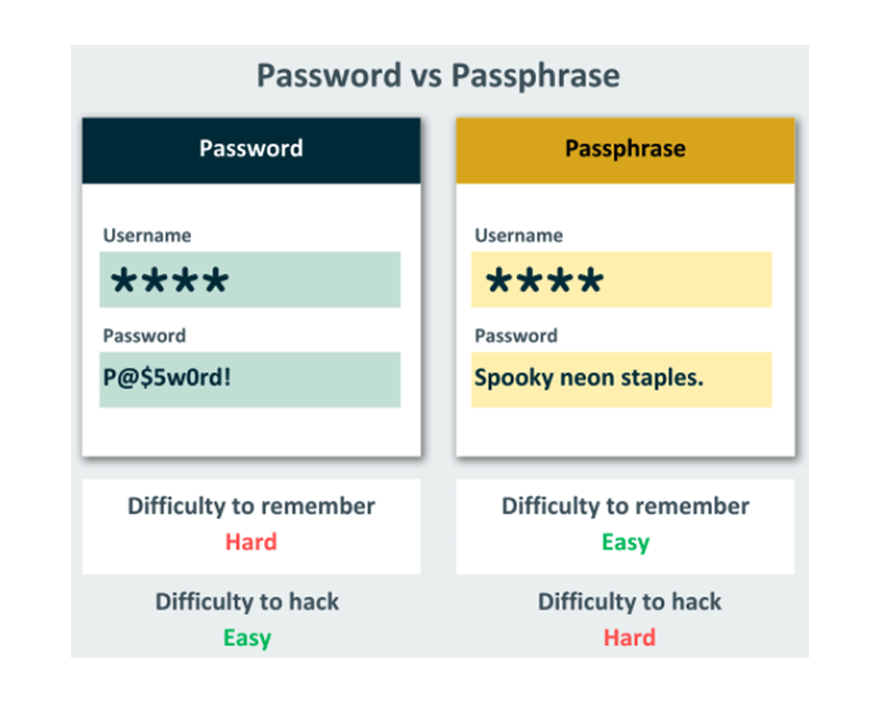
A password is a short complex combination of characters (eg: BlueTable97), whereas a passphrase is a longer, more memorable sequence of random words.
Yes. Bots & AI agents have become smarter at guessing passwords. Length beats complexity. While a 12 character random string of characters can be cracked quickly, a 4-5 word passphrase can take thousands of years to hack.
Easily! The format is 4-5 words, separated by dashes:
word1-word2-word3-word4
(eg: Scarlet-Yelling-Chair-Milk).
If you’re not feeling particularly creative, there are free tools that can generate one of your behalf:
Bitwarden.com

2.) Use a ‘passphrase’ manager
Honestly, most of us either write down our passwords on stickies or on the notes App on our phone. Neither of these are secure options. Password managers securely store & encrypt your passwords behind credentials & multi-factor authentication.
Password managers can save time by auto-filling your commonly used sites and help generate new, secure passwords (or passphrases)!
No solution is foolproof, but a password manager is a significant upgrade over sticky notes!

3.) Updates are good.
Somewhere along the line people got it in their heads that doing updates was always ill-advised. That may have been the case at the dawn of the internet, but not the case now.
Updates are one of the most integral key parts of protecting yourself & your data. We recommend enabling auto-update on your computer. It will let you know if there’s an urgent patch for a threat.

4.) Always backup your data
While the recommended way to backup used to be just plugging in a USB stick or external storage device to backup all your data, this is no longer the case.
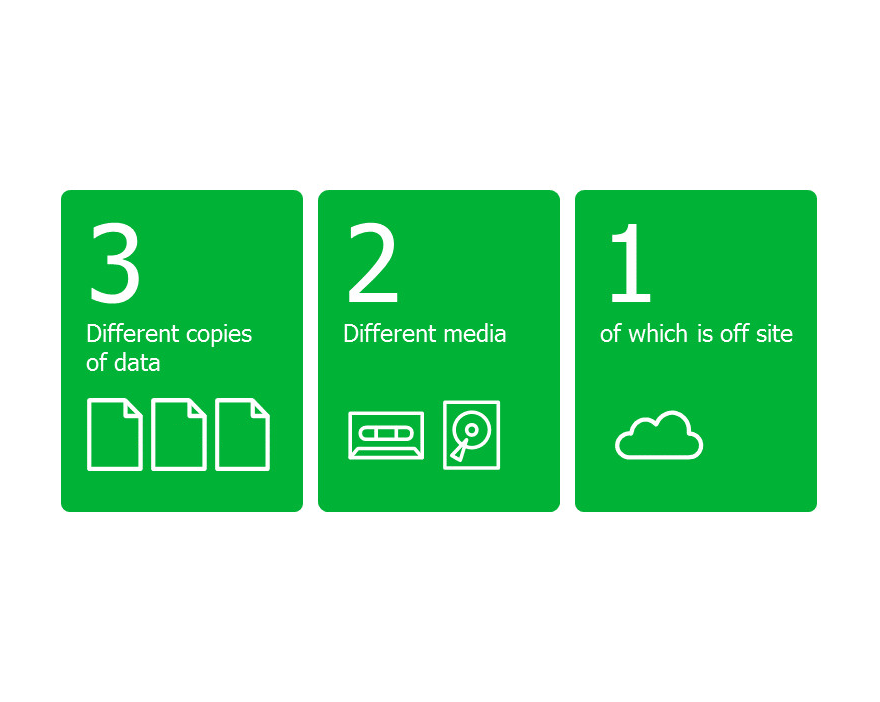
We recommend following the 3-2-1 rule.
We’re glad you asked!
1.) Your original data (on your device)
2.) A local backup (USB stick, etc)
3.) Another copy stored in geographically different location (building/cloud)
Remember when saving sensitive data to portable devices, to always store them in a secure location. If this isn’t possible, make sure to encrypt your drive so only you can unlock and view the data!
Ultimately, this all comes down to your appetite for risk. While this isn’t mandatory, it’s absolutely recommended.
Scenario A
Your house burned down & your laptop and backup drive were destroyed along with it.
Fortunately, you followed the 3-2-1 rule and made a third backup in the cloud.
Scenario B
Your laptop has a ransomware which deletes all your files locally on your device & spreads to your backup in the cloud.
Fortunately, you followed the 3-2-1 rule and made a backup to a local backup, like a USB stick or external drive.

5.) Social engineering awareness
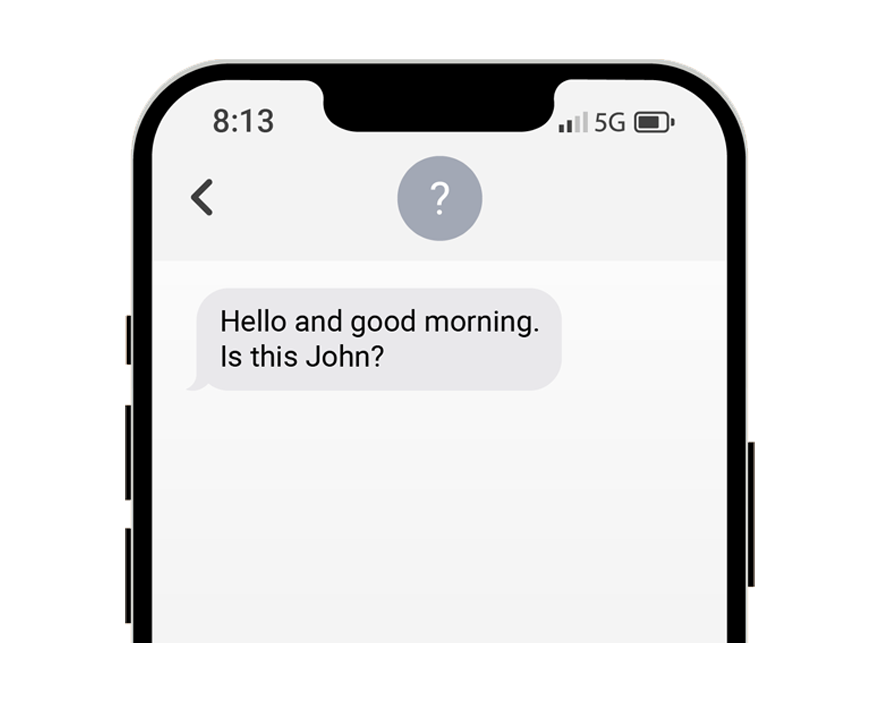
Ever got that random text claiming to be your supervisor asking you to do them a favour?
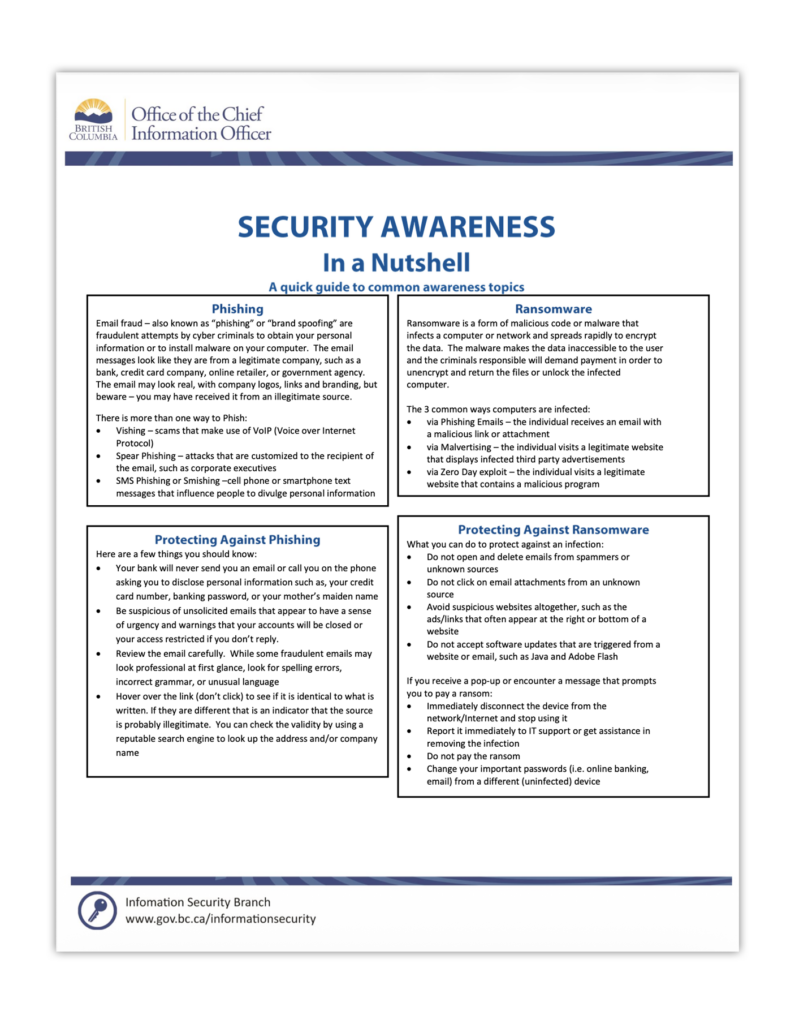
Text scams are on the rise, we’ve seen it first hand. They’re targeted, deliberate & not random. Malicious actors will use this tactic to obtain credit card information, passwords & other confidential information.
If you’re not sure, don’t reply.
Phishing emails are becoming more convincing & complex. We see 100’s of emails a day, sometimes it’s easy to fall for something that looks so convincing.
Our secret weapon? Always check the sender email. Legitimate emails should always come from a known email address (not j0hN_Sm1th@evilhacker.mail)
Remember, if you’re not sure, report to the Helpdesk or flag as spam.
Some hackers impersonate key staff or even IT Dept members using AI voice tools. It’s important to always verify the caller or ask them identifying information.
Some breaches can even happen in person. Just because they carry a clip-board and high-vis vest, doesn’t mean they’re authorized.
Even when an email looks safe, always use diligence when clicking links.
Do you know the sender? Are you expecting this communication? Did you verify the email address?
Does the link ask you to verify credentials?

6.) Multi-factor Authentication
We’re guessing you’re likely already familiar with this one – almost all banks, apps & services offer this now, but it’s not always enforced.
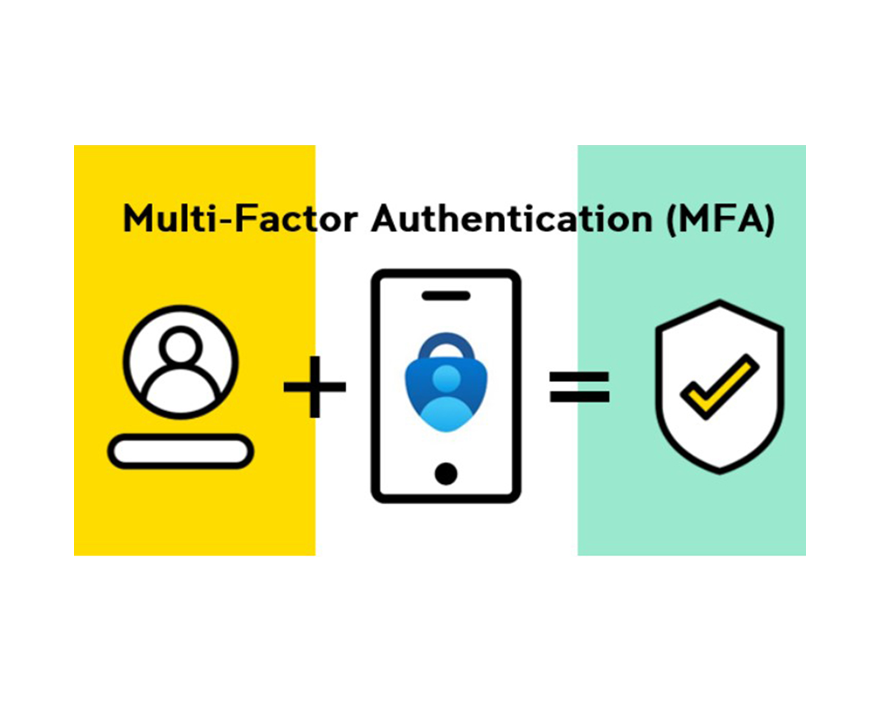
While we enforce multi-factor authentication (MFA) as a mandatory policy, your personal accounts may not be protected. We recommend you use MFA when at all possible.
Not all MFA is the same. There are three different kinds. In order of least secure to most secure:
1.) Text verification
2.) Authentication App
3.) Security Key
Text is the least secure, as SIM swaps can easily override this security measure.
Authentication Apps are better, but can still steal or spoof your session through malicious sites.
Security keys are considered the best, as they require a physical key, fingerprint & PIN to verify.

It takes less than 30 seconds for someone to plug in a USB stick and steal data while you’re away from your desk.
We suggest to always get in a good habit and lock your computer when you leave you desk.. even if it’s just a quick bathroom or coffee break!
Trust us. We check your keyboards. We know who the repeat offenders are.
Many of us reuse the same passwords at work that we do for home. Storing your passwords on stickies, paper, etc is never recommended!
If passwords for things like shared mailboxes do have to be used, consider a passphrase manager or if you have to use a notebook, ensure it’s locked away and out of sight at the end of the day.
We’ve seen this too many times before. Print jobs someone sent to the copier and forgot to pickup – and it’s someones confidential personal information (health records, transcripts, passwords…)
This is one of the many reasons we use a managed print system.
We hope this one should be self explanatory, but never share your personal password.
Remember, you are responsible for what happens on your account!

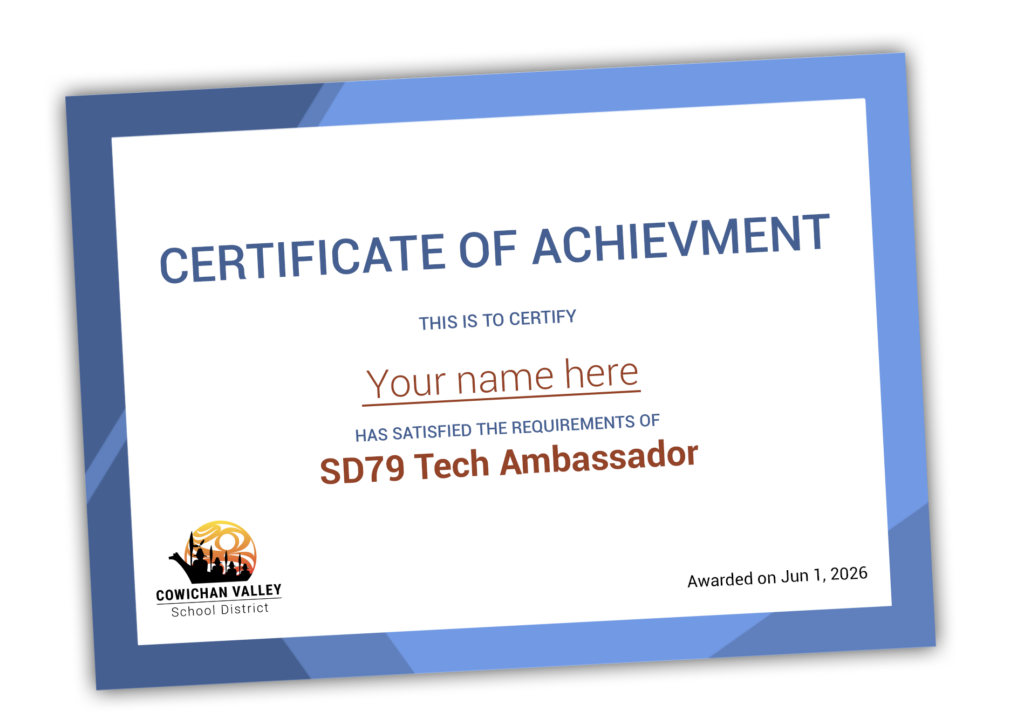
Ready to become a Tech Ambassador?
Put your knowledge and skills to the test and take our quick assessment. If you pass, you’ll even get a certificate and badge you can use in your email signature.